PowerBake User Guide
Introduction

PowerBake is a desktop application designed to help small home bakery businesses track clients, manage pastry inventory, and organize orders efficiently.
Using PowerBake, you can efficiently manage your bakery with:
- Quick Overview: Instantly access client details, pastry details, and order statuses at a glance.
- Order Tracking: Keep track of each order's progress, from placement to delivery or pickup.
- Ease of use: Intuitive and simple commands that anyone can pick up.
To enhance speed and productivity, PowerBake is optimized for a Command Line Interface (CLI) while still providing the benefits of a Graphical User Interface (GUI).
If you type quickly, PowerBake helps you process orders and manage your business faster than traditional GUI-based applications.
Prerequisite Knowledge
This guide is designed to be accessible to all users, whether you’re a new or experienced user.
If you are a new PowerBake user:
- Do refer to the Glossary section to understand the key terminologies used in the guide.
- Check out our Getting Started section to get started with using PowerBake!
If you are an experienced PowerBake user:
- The Command Summary section provides a quick overview of all available commands in PowerBake.
- The Features section can give more specific insight as to the features of PowerBake and each command.
Our goal is to make managing your bakery as smooth and efficient as possible, regardless of your level of experience.
For additional information, you may refer to the FAQ section or the Known Issues section.
Please note that this application was developed with Singapore-specific context in mind, so certain constraints or limitations may be unique to Singapore.
Understanding the User Guide
This section outlines the various elements found in this guide and explains what they represent.
Additional Info
Additional information are shown as a box with a "i" symbol.
This is an example of additional information.
Warnings
Warnings are shown typically as a box with an exclamation mark as a symbol.
This is another warning style. Be careful!
Tips
Similarly, tips are shown within a box with a lightbulb as its symbol.
This is a tip you can follow for your convenience!
Getting Started
Let's learn how to get started with PowerBake! This guide will walk you through on how to install the application and how to use it!
By the end of this section, you will:
- Have PowerBake installed on your computer
- Understand how to run PowerBake
- Create your first Customer, Pastry and Order!
- Learn how to manage your Customers and Orders
Installation
- Ensure you have Java
17or above installed.
Download the latest
powerbake.jarfile from our Github's latest release.Find the file you have just downloaded. It is called
powerbake.jar.Create a new folder to use as the home folder for PowerBake.
- It is recommended to use a new & empty folder to prevent any data loss.
- This folder can be created anywhere on your computer.
Copy the file to the newly created folder.
How to copy the file into the new folder:
Right click on
powerbake.jarand select Copy.Navigate to the newly created folder.
Right click on the folder and select Paste.
At the end you should have an empty folder with the
powerbake.jarfile in it similar to this: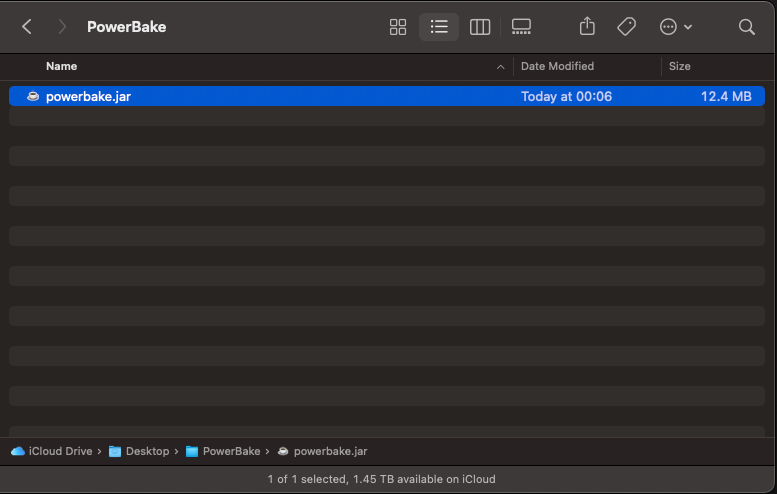
Starting PowerBake
Now that you have installed PowerBake, lets learn how to launch it!
Open a command terminal
- Windows: open the start menu and search for
cmdthen pressEnter - MacOS: open spotlight search and search for
Terminalthen pressEnter - Linux press
Ctrl + Alt + Tto open the command terminal.
How to use the terminal:
If you are unsure about how to use the terminal you can follow this guide.
- Windows: open the start menu and search for
Navigate into the folder you created earlier.
How to navigate into the folder:
Open the command terminal.
Type
cd(with a space aftercd).Drag the folder into the terminal window.
Press
Enter.
Run the following command to start PowerBake:
java -jar powerbake.jar
After a brief moment, you should see a window similar to this:
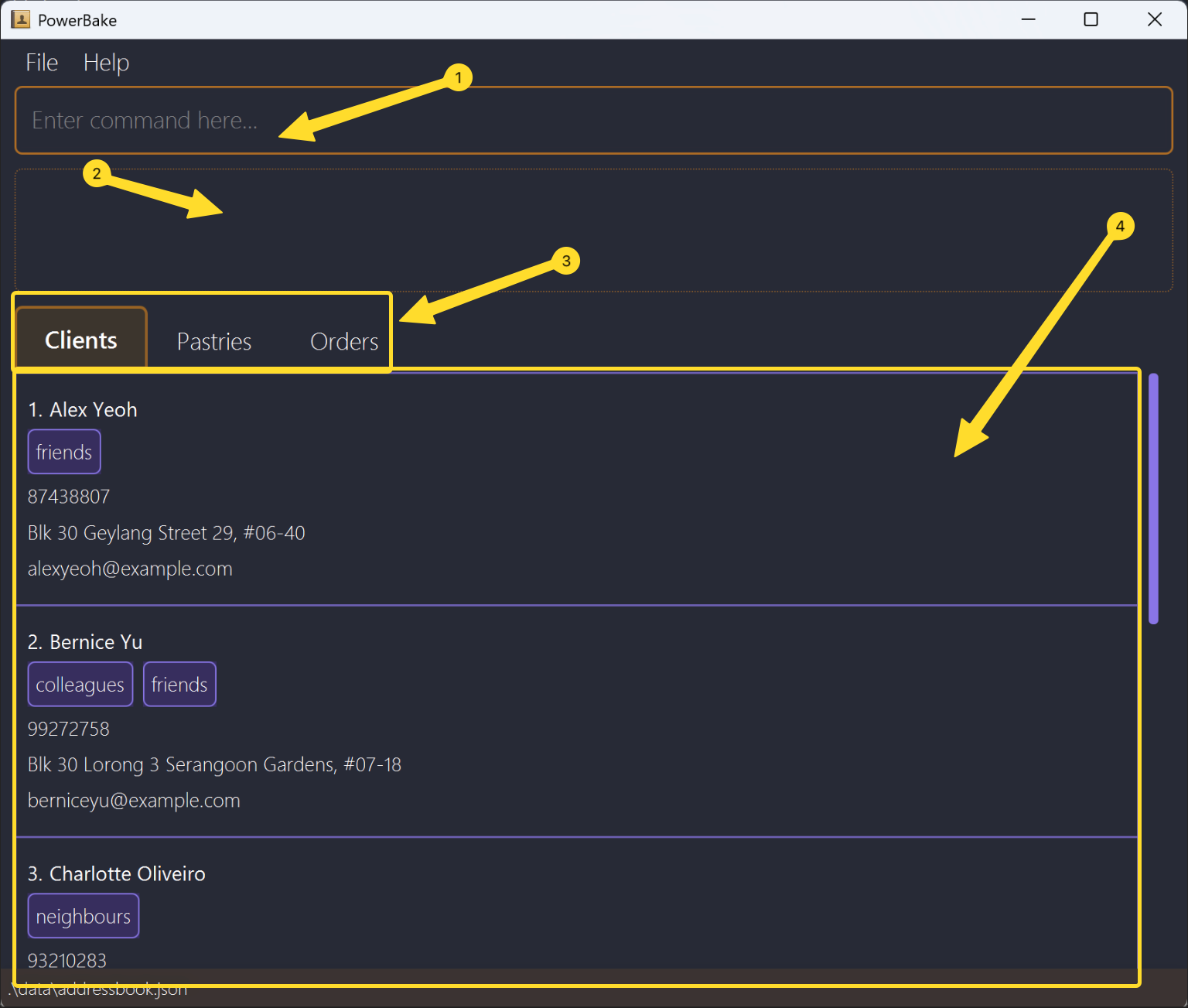
The first time you run PowerBake, it will contain sample data.
This helps you understand how the entries will appear and how the app will feel like when you start using it.Index Component Name Description 1 Command Box You can type commands here and press Enterto execute them.2 Result Display Box Displays the result of executing a command. 3 Current View Displays which tab you are currently viewing 4 List View Displays the information of the tab you have currently open
Now that you have PowerBake running, lets learn how to use it to manage your customers and orders in this tutorial!
Tutorial
Managing your Bakery with PowerBake!
This tutorial will guide you through the process of managing your bakery with PowerBake. When you're done you'll be familiar with the typical workflow of PowerBake!
Step 1: Adding a Client
Purpose: Before we can start managing our bakery, we need to have a list of our clients.
Imagine you have a a new client, Luke, who has just placed an order with you. Lets add him to PowerBake!
To add him to PowerBake, use this command in the Command Box
add client Luke -p 88776655 -a 5 Punggol Street -e luke@gmail.com
This command specifies the following details about Luke:
- Name: Luke
- Phone Number: 88776655 using the
-pflag - Address: 5 Punggol Street using the
-aflag - Email: luke@gmail.com using the
-eflag
After hitting Enter, you should see a message indicating that Luke has been successfully added to PowerBake and the new entry should appear in the List View.
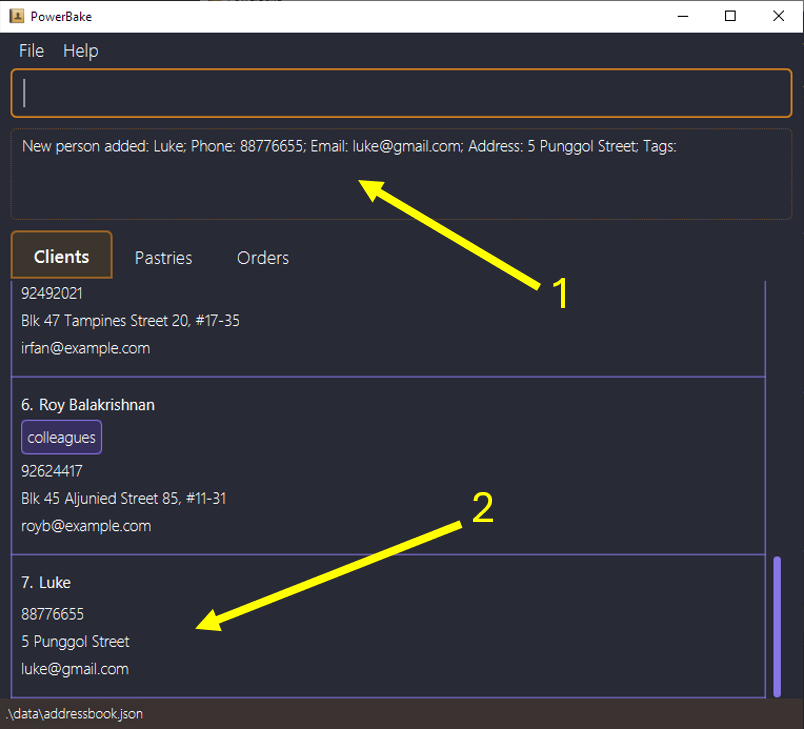
- The Result Display Box will show a message indicating that Luke has been successfully added.
- The List View will display the details of Luke.
Congrats! You have successfully added your first client to PowerBake!
Step 2: Adding a Pastry
Purpose: Now that we have a client, we need to add the pastries that we offer to our clients.
So far we have created new a new client, Luke. Now, lets add a new pastry, Croissant, to PowerBake!
To add the Croissant to PowerBake, use this command in the Command Box and hit Enter:
add pastry Croissant -pr 5.5
This command specifies the following details about the Croissant:
- Pastry Name: Croissant
- Price: $5.50 using the
-prflag
Hitting Enter will display a message indicating that the Croissant has been successfully added to PowerBake and the new entry should appear in the List View.
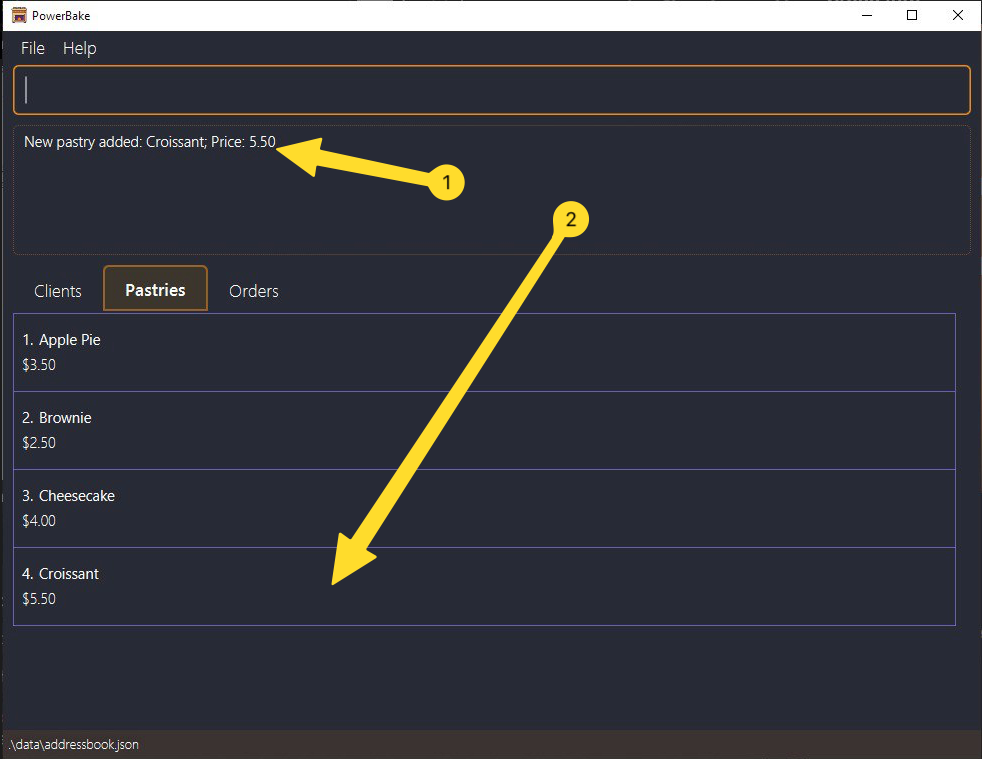
- The Result Display Box will show a message indicating that the Croissant has been successfully added.
- The List View will display the details of the Croissant.
Nice! You have successfully added your first pastry to PowerBake!
Step 3: Adding an Order
Purpose: Now that we have a client and a pastry, we can start taking orders!
Lets say Luke has placed an order for 2 Croissants and 2 Apple Pies. Lets add this order to PowerBake!
First, we have to find the index of the client Luke using the command in the Command Box:
find client luke
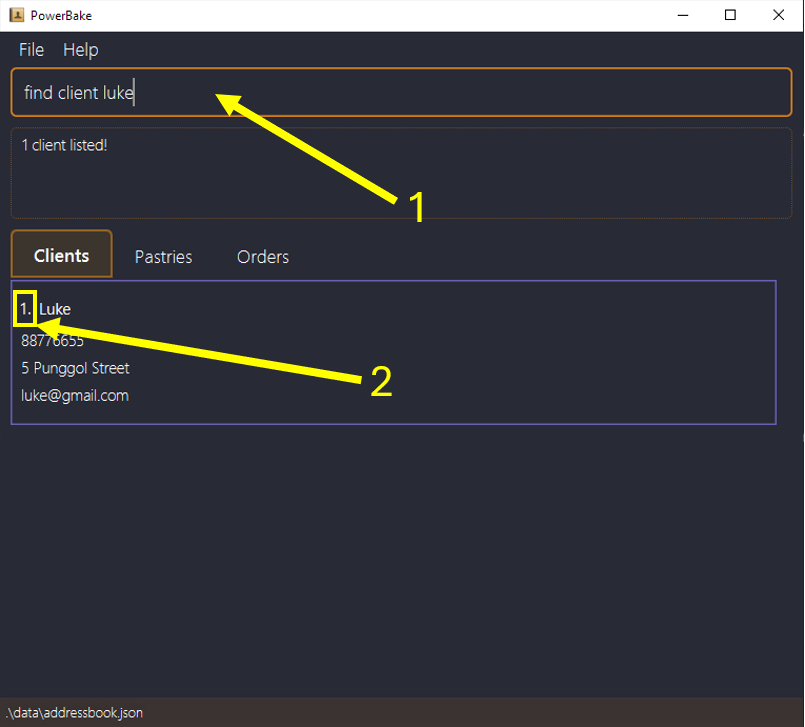
Here we find that the index of luke is 1!
Do note that when using the find command, the indexes of clients may change.
Make sure the index you use in the next step corresponds to the correctly in the list to the client you want to edit!
To add the order to PowerBake, use this command in the Command Box and hit Enter:
add order 1 -pn Croissant -q 2 -pn Apple Pie -q 2
You can add multiple pastries in a single order by sequentialy specifying the pastry and quantity for each pastry by using the -pn and -q flags.
For Example: add order 1 -pn Croissant -q 2 -pn Apple Pie -q 2 -pn Tart -q 3 ...
This command specifies the following details about the order:
- Client: Luke using the index of the client
- Pastry: Croissant using the
-pnflag - Quantity: 2 using the
-qflag
Hitting Enter will display a message indicating that the order has been successfully added to PowerBake.
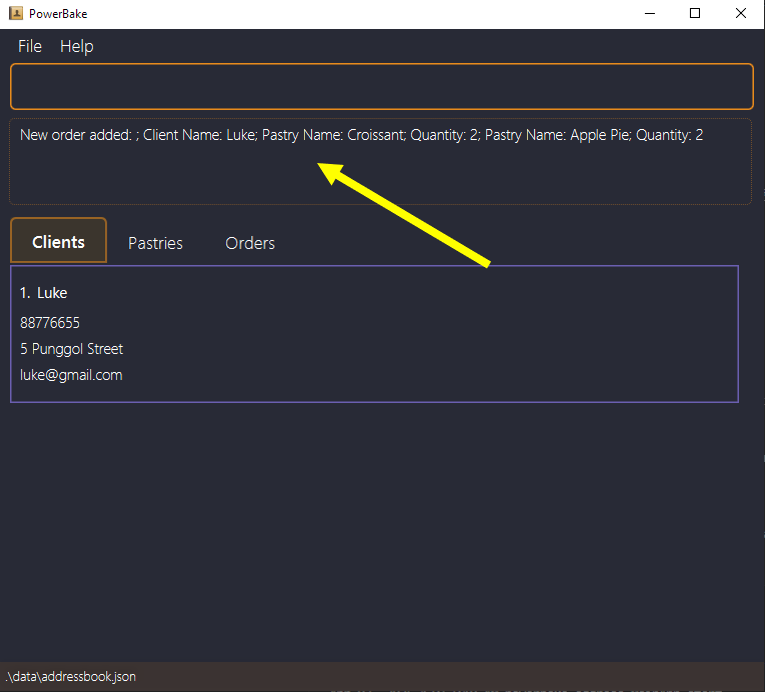
You can then view the order list using the command or clicking on the order tab:
view order
You can view the order in detail by finding the order index in the GUI and typing:
view order INDEX
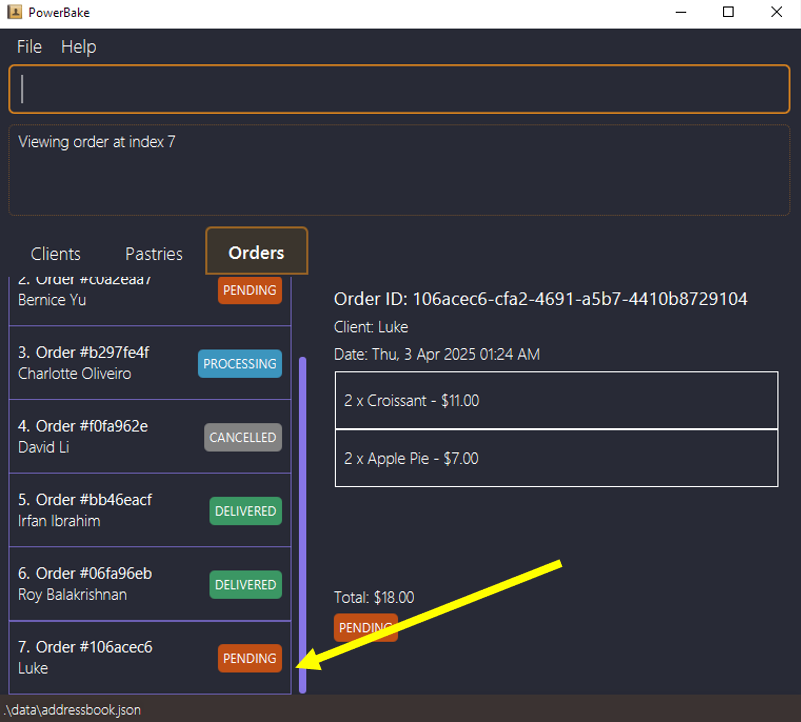
New Orders automatically have the status of Pending.
- The Result Display Box will show a message indicating that the order has been successfully added.
- The List View will display the details of the order.
Good Job! You have successfully added your first order to PowerBake! With this knowledge, you can now manage your bakery efficiently!
Step 4: Clearing PowerBake
This step is optional but if you wish to start with a clean slate, use the following command in the Command Box:
clear
Do be careful, as this command irreversibly deletes ALL entries. This the operation cannot be undone.
Features
This section explains the detailed list of commands and its usages which are available for you to use.
If you are familiar with PowerBake and just need a quick refresher on the commands available, you can click here for the Command Summary below.
Notes about the command format:
Words in
UPPER_CASEare the parameters to be supplied by the user.add client NAME -p PHONE -a ADDRESS -e EMAIL [-t TAGS]NAME,ADDRESS,EMAIL,PHONEandTAGSare parameters which are to be replaced:add client Luke -p 88776655 -a 5 Punggol Street -e luke@gmail.com -t clientWords in
[Square Brackets]are optional parameters.add client NAME -p PHONE -a ADDRESS -e EMAIL [-t TAGS]TAGSis optional. You can use it like:add client Luke -p 88776655 -a 5 Punggol Street -e luke@gmail.com -t clientOR
add client Luke -p 88776655 -a 5 Punggol Street -e luke@gmail.comExtraneous parameters for commands that do not take in parameters (
exit) will be ignored.
e.g. if the command specifiesexit 123, it will be interpreted asexit.Command words such as
addandfindare case-insensitive.
e.g. both the commands below are treated the same:add client Luke -p 88776655 -a 5 Punggol Street -e luke@gmail.comaDD client Luke -p 88776655 -a 5 Punggol Street -e luke@gmail.com
Parameters
This section covers the different parameters used in PowerBake and their respective constraints.
To make sure commands to work successfully, ensure that all parameters follow the constraints mentioned below.
Characters with accents or diacritics (e.g., à, é, ô, ÿ) as well as those from non-Latin alphabets (e.g., Я (Cyrillic – Russian), あ (Japanese – Hiragana), ض (Arabic)), are currently not supported.
| Parameter | Description | Constraints | Example |
|---|---|---|---|
NAME | The name of your client |
| Luke JamesJ@mesジョン ドー俊涵 |
ADDRESS | The address of your client |
| 5 Sengkang StreetPGPR |
EMAIL | The email of your client |
| luke@gmail.comalex.ye_o+h@ex.amp-le.comluklu_+ke@gmail.com-luke@gmail.comjohn@examplenigel@example.cmihir@example-.comlucas@ex/ample.comnoel@example.c-m |
PHONE | The phone number of your client |
| 12345678+65 1234 5678 |
TAG | Extra details of your client |
| Gluten FreeEgg/Cheese Only |
PASTRY_NAME | The name of your pastry |
| Chocolate EclairCroissantChocolate Éclair |
PRICE | The price of your pastry |
| 312.50.99999.990One hundred-11.995.991000 |
QUANTITY | The number of pastry items ordered |
| 1999One00.91000 |
CLIENT_INDEX | The index of the client based on the list shown |
| 1 (only if client exists)0-1 |
INDEX | General index to reference client/pastry/order shown on the list |
| 1 (only if client/pastry/order exists)0-1 |
KEYWORD | Used in find command to search the relevant client/pastry/order list |
| Apple PieJohn Doe |
Adding a Client: add client
The add client allows you to seamlessly add key details of your client into the record. These details will then be integrated into keeping track of orders in the future.
Command Usage
add client NAME -p PHONE -a ADDRESS -e EMAIL [-t TAGS]
Parameters:
NAME: The name of your client.-a ADDRESS: The address of your client, 5 - 100 characters-e EMAIL: The email address of you client, follows valid format-p PHONE: 8-digit phone number of your client-t TAG: Extra details of your client
Refer to the Parameters section for more details about the parameters and their individual constraints.
All fields (except for
TAG) are compulsory and must be not empty.TAGcan be left blank, you can add as many tags as you want.PowerBake checks for duplicate
clientsusingPHONEnumber. Adding of duplicate clients will be ignored and an error message will be shown.
Example:
Adding a client, Luke, into Powerbake application. He lives at 5 Sengkang Street and his email address is luke@gmail.com. His phone number is 88776655.
To add luke, simply type:
add client Luke -p 88776655 -a 5 Sengkang Street -e luke@gmail.com
Once enter is hit, a output message will be displayed of your success.
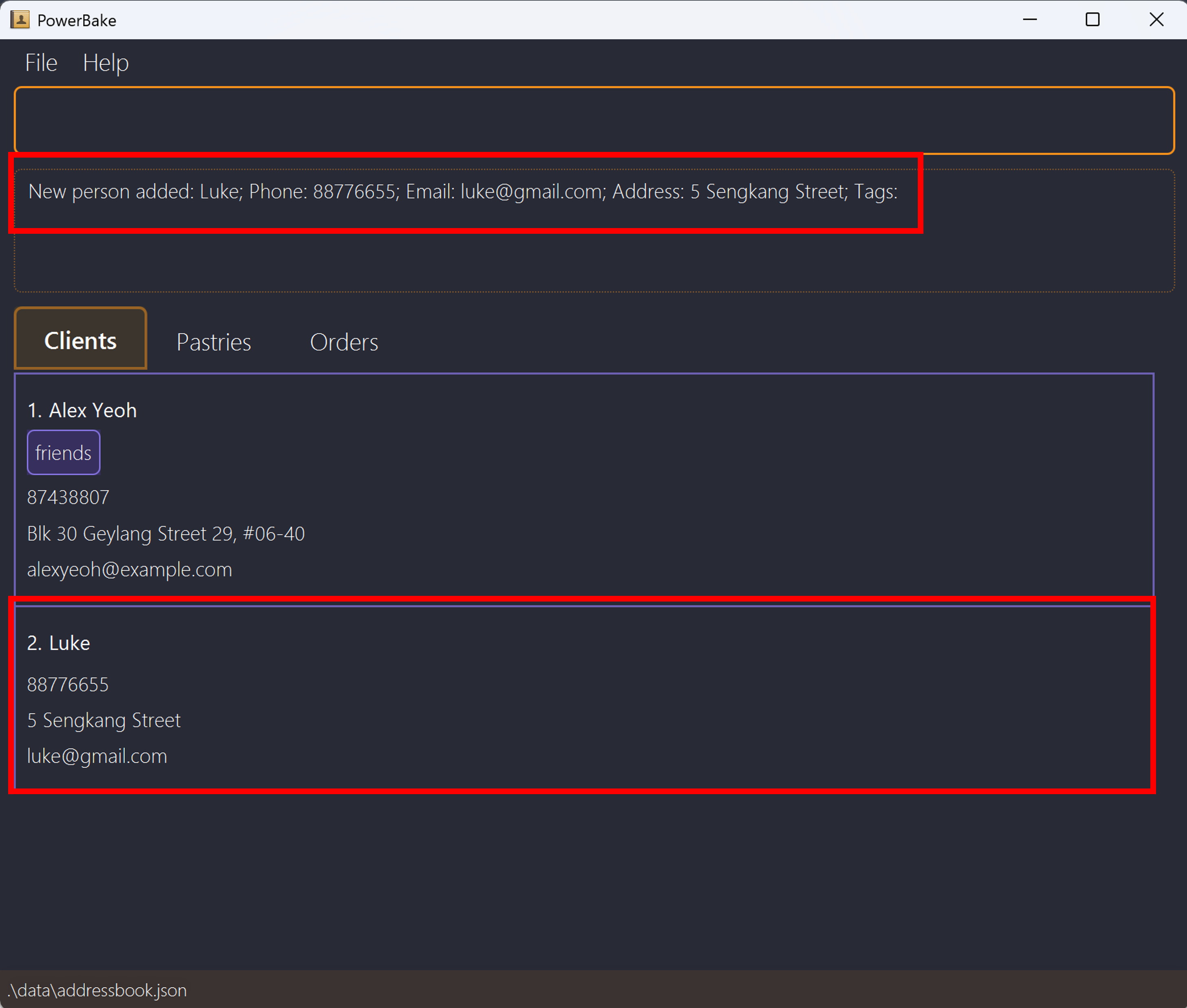
You can use the edit command to change the client details if you made a mistake here.
Adding a Pastry: add pastry
The add pastry command allows you to add key details of pastries. These details will then utilised when keeping track of pastry orders in the future.
Command Usage
add pastry PASTRY_NAME -pr PRICE
Parameters:
PASTRY_NAME: The name of your pastry.-pr PRICE: The price of your pastry, supports up to 2 decimal places.
Refer to the Parameters section for more details about the parameters and their individual constraints.
All fields are compulsory and must not be empty.
PowerBake checks for duplicate
pastryusingPASTRY_NAME, this check is case-insensitive. Adding of duplicate pastries will be ignored and an error message will be shown.
Example:
Adding a pastry, Croissant, into PowerBake application. Price is 5.50.
To add the Croissant, simply type
add pastry Croissant -pr 5.5
Once enter is hit, a output message will be displayed of your success.
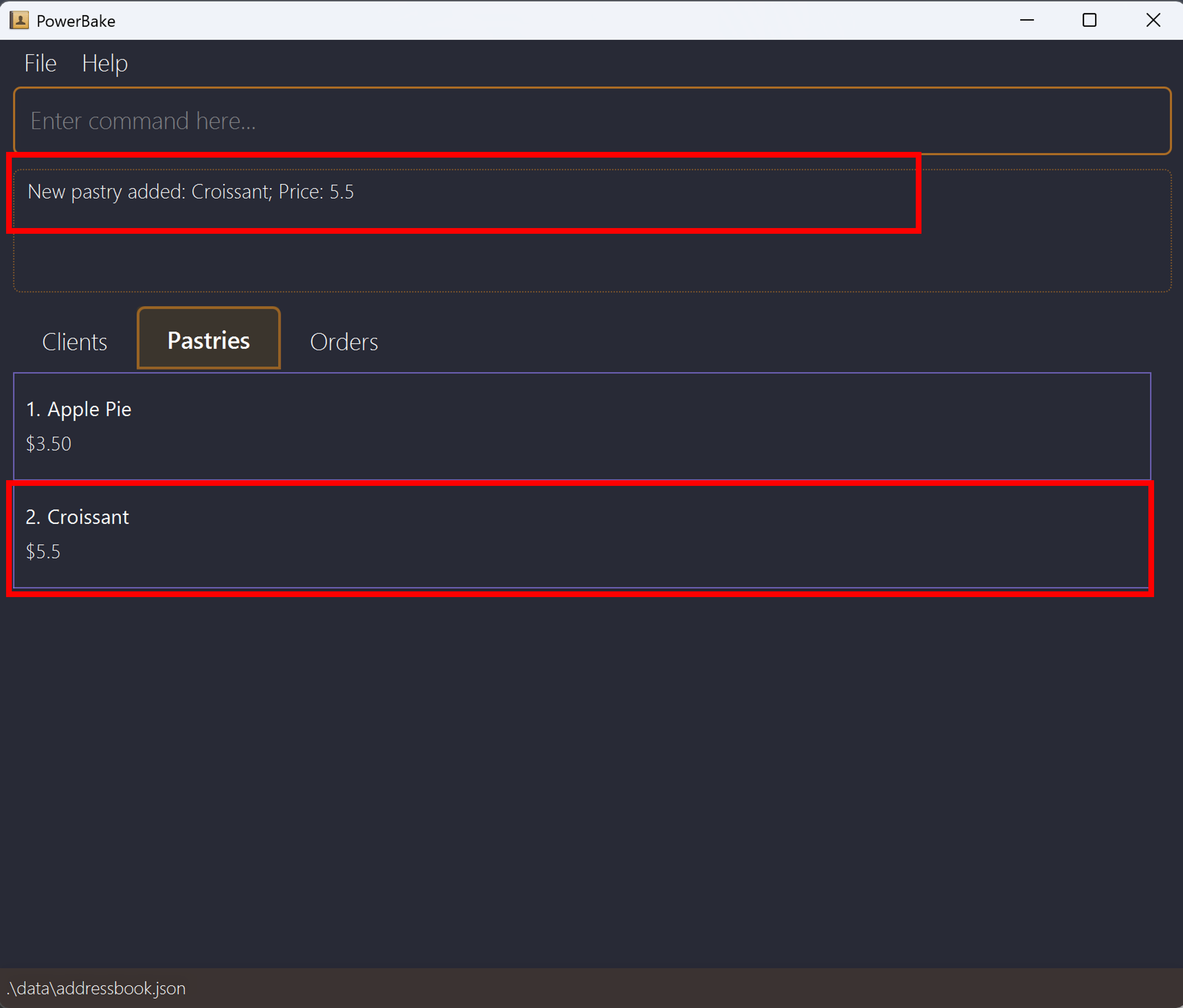
You can use the edit command to change the pastry details if you made a mistake here.
Adding an Order: add order
The add order command allows you to create orders for clients with their ordered pastries.
Command Usage
add order CLIENT_INDEX -pn PASTRY_NAME -q QUANTITY [-pn PASTRY_NAME -q QUANTITY]
Parameters:
CLIENT_INDEX: The index of the client based on the list shown-pn PASTRY_NAME: The name of the pastry to be added-q Quantity: The quantity of pastry to be added to the order
Refer to the Parameters section for more details about the parameters and their individual constraints.
- All orders added are always considered unique.
You can add multiple pastries in a single order by sequentialy specifying the pastry and quantity for each pastry by using the -pn and -q flags.
For Example: add order 1 -pn Croissant -q 2 -pn Apple Pie -q 2 -pn Tart -q 3 ...
Example:
Adding an order for client 1 an order of 10 Brownie and 20 Apple Pie into PowerBake application.
To add the Croissant, simply type
add order 1 -pn Brownie -q 10 -pn Apple Pie -q 20
Once enter is hit, a output message will be displayed of your success.
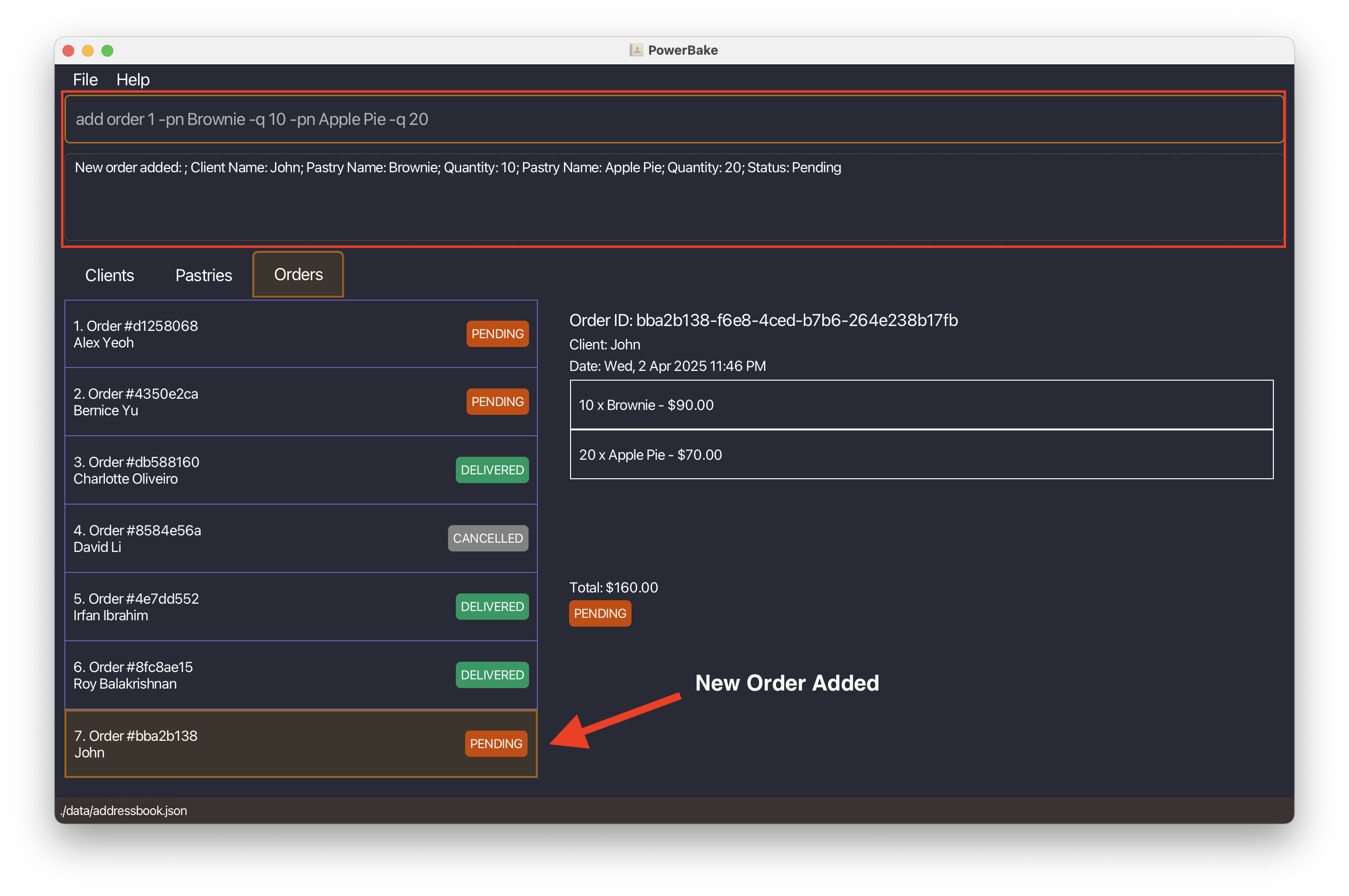
PowerBake assumes that once an order is created, it has been mutually agreed upon and is intended solely for fulfillment.
Therefore, if you made a mistake here, you should use the delete command and add the correct order again.
You can use the edit command to change only the status of the order.
Deleting Client, Pastry or Order: delete
The delete command helps you maintain a clean and relevant list of clients, pastries and orders.
Command Usage
delete client/pastry/order INDEX
Parameters:
INDEX: Represents position of the client/pastry/order list that you wish to remove.
Refer to the Parameters section for more details about the parameters and their individual constraints.
The
INDEXshould be positive integer. For instance:1,2, etc.
This corresponds to the position of the client/pastry/order currently displayed in the list.Deleting a
clientor apastrywill not delete the relatedorder.
The reasoning behind this is that PowerBake assumes that orders are mutually agreed upon creation and are purely meant for tracking order fufillment, therefore, the order should maintain its integrity using its original form.
Do be careful, as this command irreversibly deletes the selected entry. This the operation cannot be undone.
Example 1:
If you want to remove the fifth client on the list, the command would look like this:
delete client 5
Before: 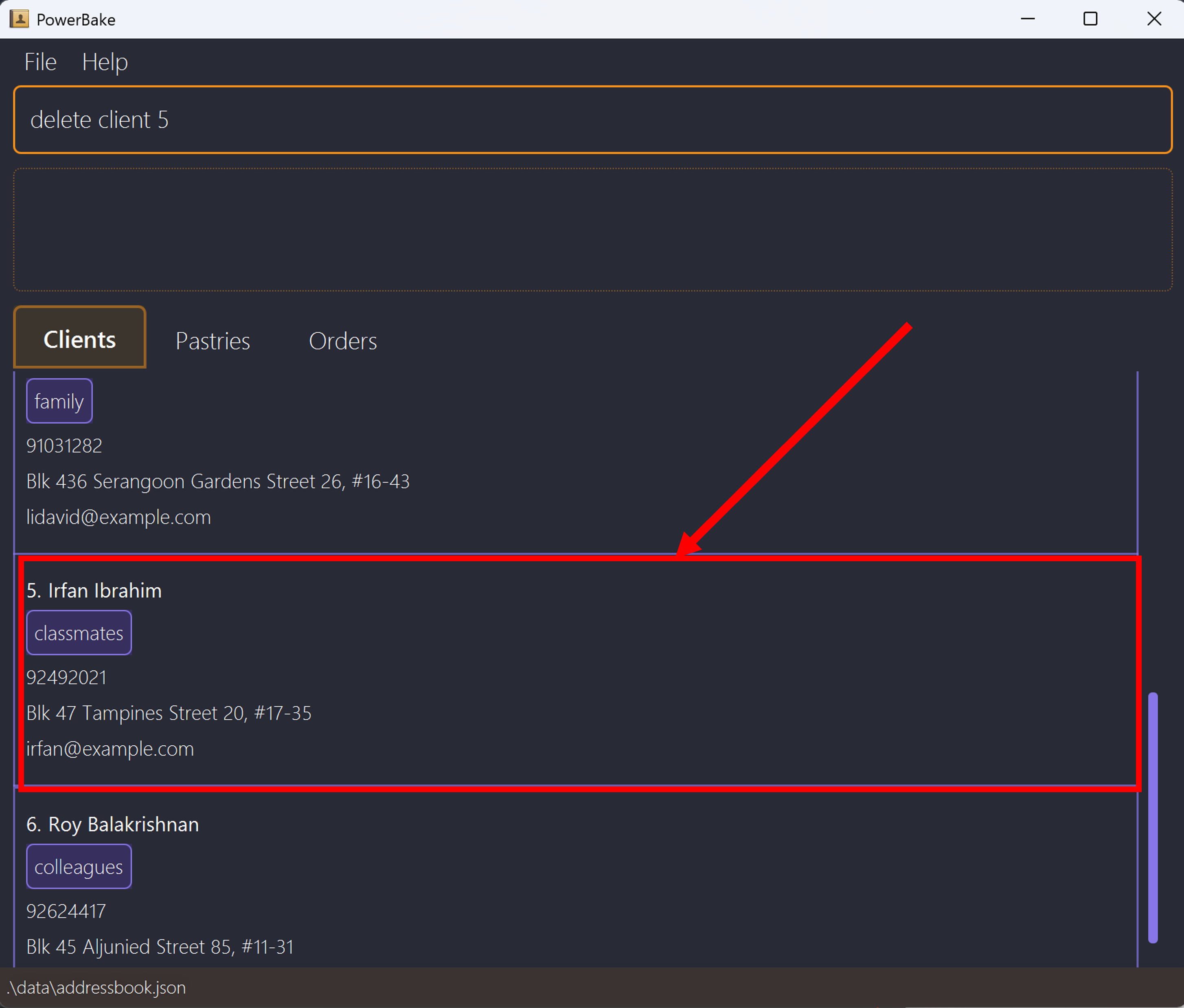
After hitting Enter, you will see the fifth client removed from the list.
The remaining clients will adjust their index numbers accordingly.
After: 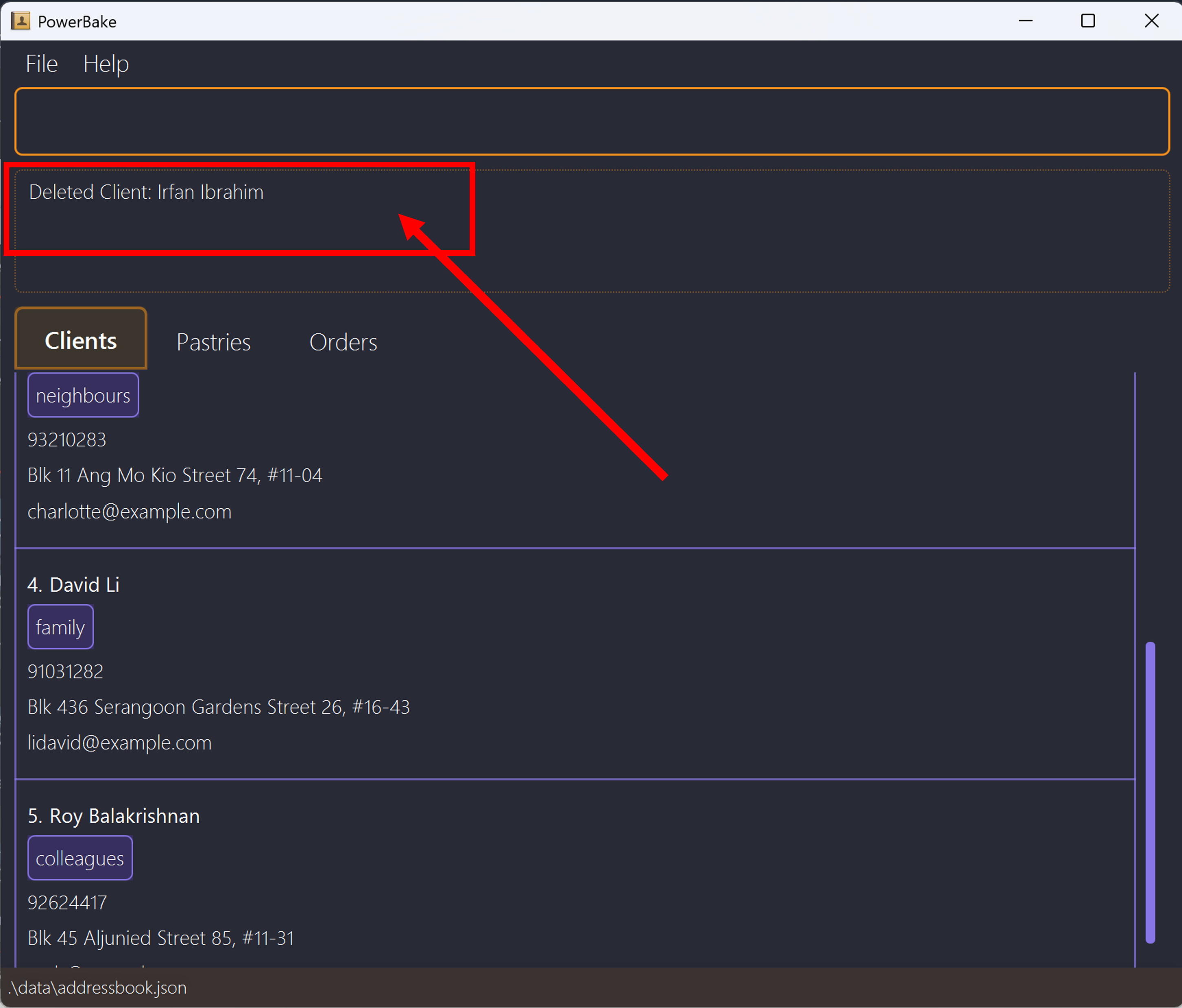
Example 2:
If you want to remove the second pastry on the list, the command would look like this:
delete pastry 2
After hitting Enter, you will see the second pastry removed from the list.
The remaining pastries will adjust their index numbers accordingly.
Example 3:
If you want to remove the third order on the list, the command would look like this:
delete order 3
After hitting Enter, you will see the third order removed from the list.
The remaining orders will adjust their index numbers accordingly.
Editing Client, Pastry or Order Details : edit
The edit command offers flexibility in managing details of Clients, Pastries or Orders in PowerBake.
Command Usage
To edit Client details:
edit client INDEX [-n NAME] [-p PHONE] [-e EMAIL] [-a ADDRESS] [-t TAGS]
To edit Pastry details:
edit pastry INDEX [-n PASTRY_NAME] [-pr PRICE]
To edit Order details:
edit order INDEX -s STATUS
Parameters:
INDEX: Represents position of the client/pastry/order list that you wish to edit.-n NAME: New name for your client/pastry that you wish to edit to-p PHONE: New phone number for your client that you wish to change-e EMAIL: New email for your client that you wish to use-a ADDRESS: New address for your client that you wish to update-t TAGS: New tags for your client to be associated with the client-n PASTRY_NAME: New pastry name to be edited to-pr PRICE: New price of the pastry to be updated to-s STATUS: New Status of the order to be updated to
Refer to the Parameters section for more details about the parameters and their individual constraints.
The
INDEXshould be positive integer. For instance:1,2, etc.
This corresponds to the position of the client/pastry/order currently displayed in the list.At least one field needs to be edited.
Editing
clientwill update the relatedordersto allow update of contact details. However, editing apastrywill not update the values in the relatedorders.
This is to maintain the integrity of the original order details, ensuring that what was agreed upon at the time of ordering remains unchanged, even if the pastry's information is later modified.
Example 1:
If you want to edit the name and phone of the first client on the list, the command would look like this:
edit client 1 -n John -p 97432170
After hitting Enter, you will see the first client edited on the list.
Example 2:
If you want to edit the price of the second pastry on the list, the command would look like this:
edit pastry 2 -pr 9.00
After hitting Enter, you will see the second pastry updated from the list.
Example 3:
If you want to edit the status of the third order on the list, the command would look like this:
edit order 3 -s delivered
After hitting Enter, you will see the third order updated from the list.
Viewing Client, Pastry or Order : view
The view command offers a detailed insight of the client, pastry and order lists.
An in-depth look to access client information, types of pastries available and orders made thus far.
Command Usage
To view the various tabs:
view client/pastry/order
To view specific order:
view order INDEX
Parameters:
client: Access the client list.pastry: Access the pastry list.order: Access the order list.INDEX: The order index shown on the list that you wish to view.
Refer to the Parameters section for more details about the parameters and their individual constraints.
The view command allows only either viewing client, or viewing pastry, or viewing order or viewing specific orders.
The INDEX should be positive integer. For instance: 1, 2, etc.
This corresponds to the position of the client/pastry displayed in list.
Example 1:
If you wish to view the client details, the command would be:
view client
After hitting Enter, you will see the client details being displayed on the GUI.
Here, you can observe all the details regarding client, such as their name, address, email address, phone number and tag.
Example 2:
If you wish to view the pastry details, the command would be:
view pastry
After hitting Enter, you will see the pastry details being displayed on the GUI.
Here, you can observe all the details regarding pastry, such as the name and the price of the pastry.
Example 3:
If you wish to view the order details, the command would be:
view order
After hitting Enter, you will see the order details being displayed on the GUI.
Here, you can observe the general details regarding order, such as their order number, client name, status.
Example 4:
If you wish to view the specific order details, the command would be:
view order INDEX
After hitting Enter, you will see the order details being displayed on the GUI.
Here, you can observe all the details regarding order, such as their order number, client name, pastry name, quantity and status.
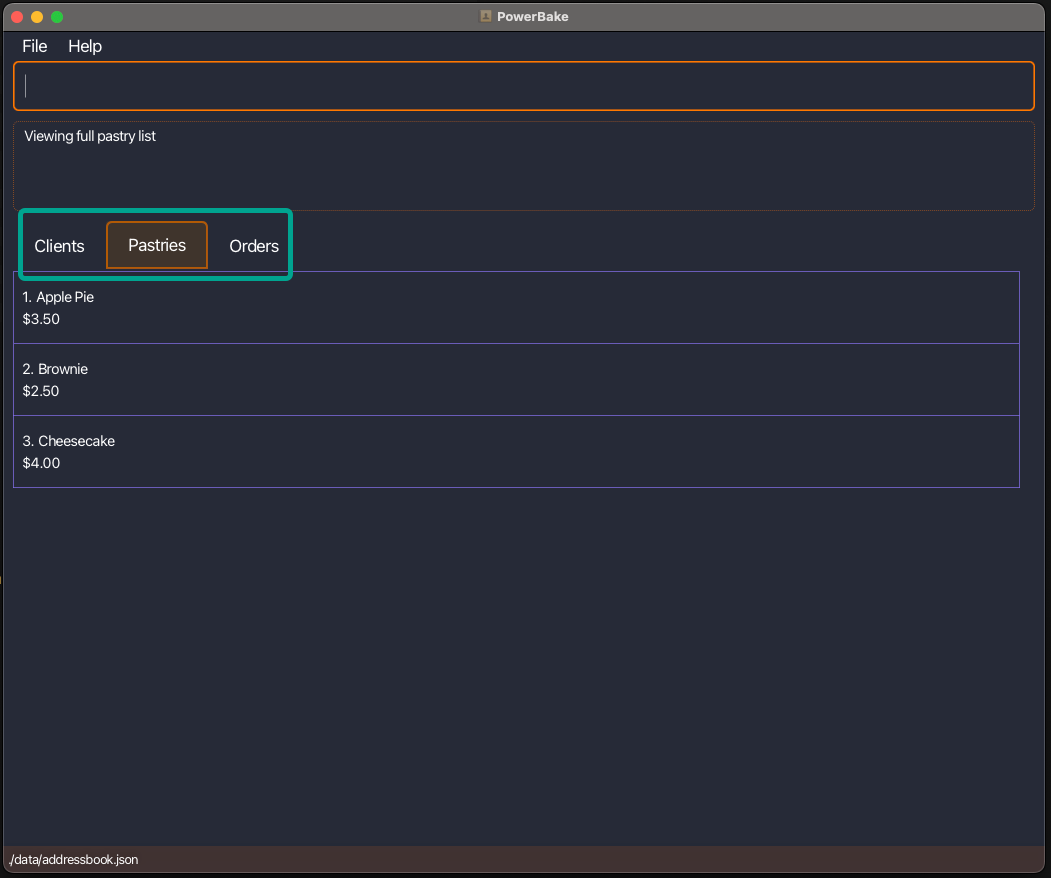
You can also use the keyboard shortcut of Ctrl + Tab to tab between view tabs.
Alternatively, you can switch between client, pastry and order by utilising the GUI button.
Find Client, Pastry or Order : find
The find command is a powerful tool to help you quickly search and locate specific client/pastry/order in PowerBake.
Command Usage
find client/pastry/order KEYWORD [MORE_KEYWORDS]
Parameters:
client/pastry/order: Represents which type of entity you wish to find from.KEYWORD: Returns searches that matches or partially matching to the keyword
Refer to the Parameters section for more details about the parameters and their individual constraints.
- At least one keyword needs to be provided.
- The matching is case-insensitive.
- The order of the keywords does not matter. e.g.
Hans Bowill matchBo Hans - Entry matching at least one keyword will be returned (i.e. OR search).
- e.g.
Hans Bowill returnHans Gruber,Bo Yang
- e.g.
- Finds the
client/pastry/orderwith matching or partially matchingKEYWORD.- e.g
hawill still returnHans Bo
- e.g
find ordersearches based on theNAMEof theclientwho placed the order.
When you use the find command, it filters the list and displays only matching entries, which may change the order and number of items shown.
As a result, the indexes in this filtered list will differ from those in the original, unfiltered list.
Therefore, any command that uses INDEX or CLIENT_INDEX must refer to the index as shown in the currently displayed (filtered) list — not the full list — to ensure it targets the correct entry.
To reset any of the list use the view command!
Example 1:
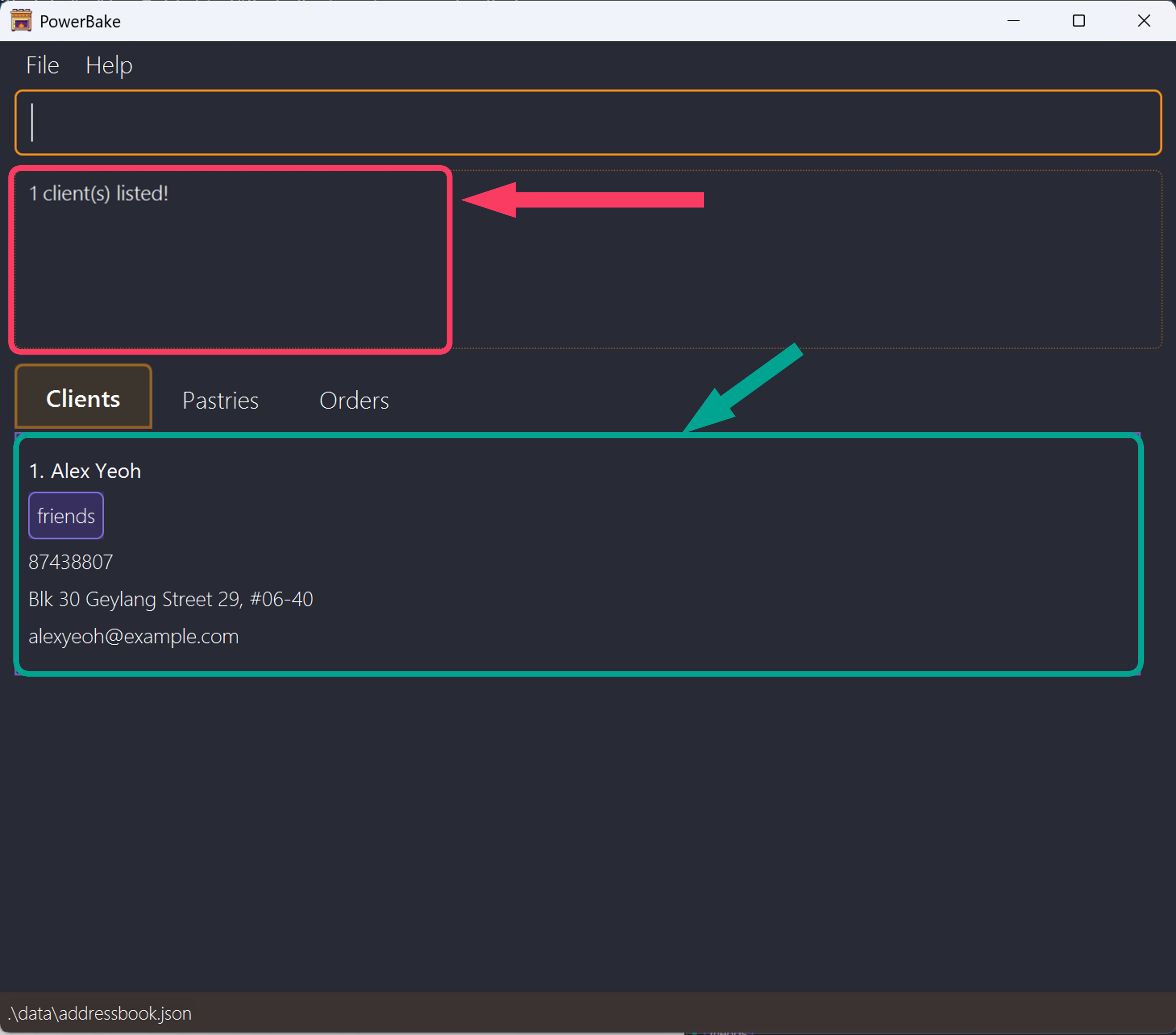
If you want to find the name of the first client on the list, the command would look like this:
find client Alex
OR
find client lex
After hitting Enter, the list will return Alex Yeoh.
Example 2:
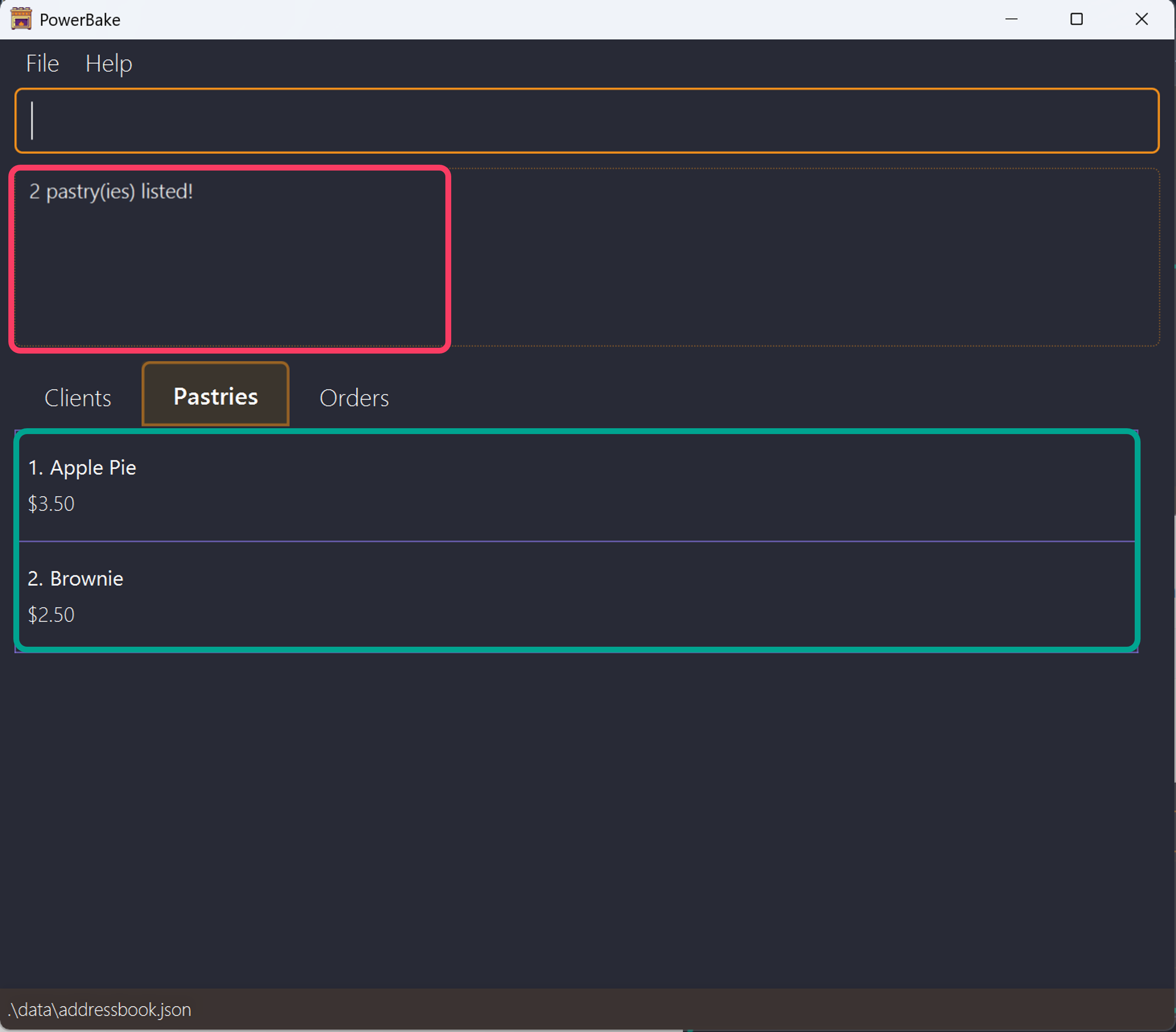
If you want to find name of the Brownie and Apple Pie pastry on the list, the command would look like this:
find pastry Brownie Apple
After hitting Enter, the list will be updated to match the search.
Example 3:
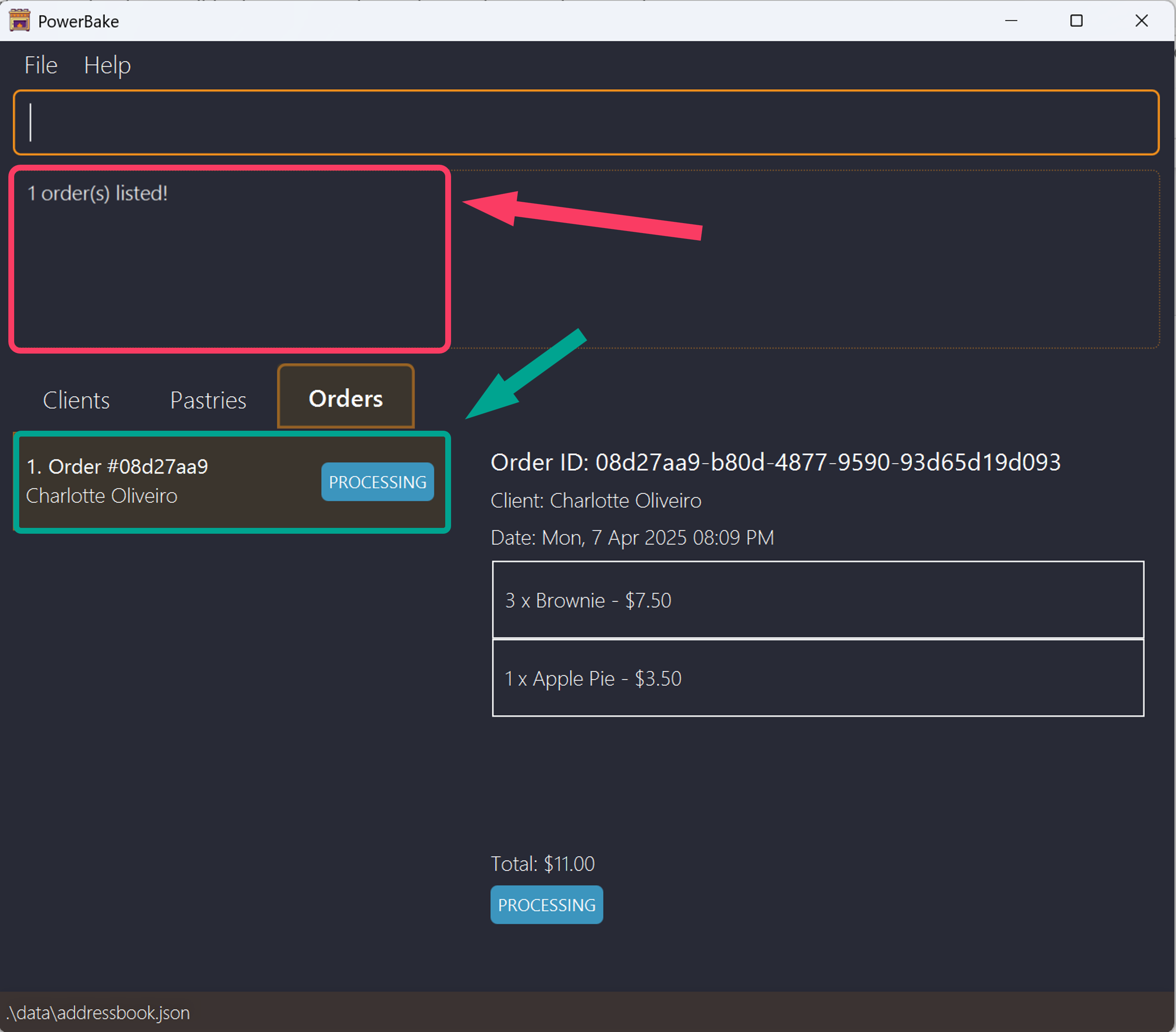
If you want to find the order that belongs to a client on the list, the command would look like this:
find order Charlotte
After hitting Enter, you will see the only the orders that belongs to Charlotte shows up.
Clearing all entries : clear
The clear command deletes all clients, pastries and orders in PowerBake.
Command Usage
clear
Parameters:
The clear command does not require any parameters.
Do be careful, as this command irreversibly deletes ALL entries. This the operation cannot be undone.
Getting help : help
The help command provide popup message showing how to access this User Guide.
Command Usage
help
Parameters:
The help command does not require any parameters.
You can also get help by clicking on the Help button or pressing F1 on your keyboard.
Exiting the program : exit
The exit command lets you have a swift way of closing PowerBake.
It is a simple command, where the application terminates while safeguarding all the data and changes you have made.
Command Usage
exit
Parameters:
The exit command does not require any parameters.
Storage
This section will go through how order, pastry and customer details are stored.
Saving Data
PowerBake data is saved automatically after any command that adds, deletes or edit. There is no need for any manual saving.
Editing the Data File
CAUTION: Adding data in the wrong format could lead to potential errors.
PowerBake data is saved in [JAR file location]/data/addressbook.json, experienced users can add or delete clients and pastries within the json file.
Caution:
If your changes to the data file makes its format invalid, PowerBake will discard all data and start with an empty data file at the next run. Hence, it is recommended to take a backup of the file before editing it.
Furthermore, certain edits can cause the PowerBake to behave in unexpected ways (e.g., if a value entered is outside the acceptable range). Therefore, edit the data file only if you are confident that you can update it correctly.
FAQ
Q: Do you support languages other than English?
- A: There is currently no support for languages other than English. This also means you will not be able to use non-English inputs.
We plan to work on this in the future! Stay tuned!
Q: How do I check my Java version?
- A: Open up your command terminal and enter the following command:
java -version
You should see something like this

The command will display openjdk version 17.0.13 or java version 17.0.13 on the first line of the output, indicating that Java 17 is installed. The minor version numbers (the last two digits) may differ from ours.
Q: How do I open up the command terminal?
- A:
- Windows: open the start menu and search for
cmdthen pressEnter - MacOS: open spotlight search and search for
Terminalthen pressEnter - Linux press
Ctrl + Alt + Tto open the command terminal.
- Windows: open the start menu and search for
Q: How do I transfer my data to another Computer?
- A: Install the app in the other computer and overwrite the empty data file it creates with the file that contains the data of your previous PowerBake home folder.
Q: Can I use two instances of PowerBake simultaneously on the same computer?
- A: Currently we advise against using more than one instance of PowerBake at a single time as it may lead to data lost and corruption between the two instances.
Known issues
- When using multiple screens, if you move the application to a secondary screen, and later switch to using only the primary screen, the GUI will open off-screen. The remedy is to delete the
preferences.jsonfile created by the application before running the application again. - If you minimize the Help Window and then run the
helpcommand (or use theHelpmenu, or the keyboard shortcutF1) again, the original Help Window will remain minimized, and no new Help Window will appear. The remedy is to manually restore the minimized Help Window.
Command summary
| Command | Usage | Example |
|---|---|---|
| Add Client | add client NAME -p PHONE -a ADDRESS -e EMAIL [-t TAGS] | add client Luke -a 5 Punggol Street -e luke@gmail.com -p 88776655 -t client |
| Add Pastry | add pastry PASTRY_NAME -pr PRICE | add pastry Tart -pr 3.40 |
| Add Order | add order CLIENT_INDEX -pn PASTRY_NAME -q QUANTITY [-pn PASTRY_NAME -q QUANTITY] | add order 1 -pn Brownie -q 10 -pn Apple Pie -q 20 |
| Delete Client | delete client INDEX | delete client 1 |
| Delete Pastry | delete pastry INDEX | delete pastry 1 |
| Delete Order | delete order INDEX | delete order 1 |
| Edit Client | edit client INDEX [-n NAME] [-p PHONE] [-e EMAIL] [-a ADDRESS] [-t TAGS] | edit client 1 -n John -p 97432170 |
| Edit Pastry | edit pastry INDEX [-n PASTRY_NAME] [-pr PRICE] | edit pastry 2 -pr 9.00 |
| Edit Order | edit order INDEX -s STATUS | edit order 3 -s delivered |
| View Client | view client | view client |
| View Pastry | view pastry | view pastry |
| View Order | view order | view order |
| View Specific Order | view order INDEX | view order 1 |
| Find Client | find client KEYWORD [MORE_KEYWORD] | find client Alex |
| Find Pastry | find pastry KEYWORD [MORE_KEYWORD] | find pastry Brownie |
| Find Order | find order KEYWORD [MORE_KEYWORD] | find order Charlotte |
| Clear | clear | clear |
| Help | help | help |
| Exit | exit | exit |
Glossary
| Term | Explanation |
|---|---|
| Client/Customer | A client/customer in a bakery is a regular or business customer who places orders for baked goods, often in bulk or on a recurring basis. |
| Command | A user input that directs Powerbake to carry out a particular action. |
| Command Line Interface (CLI) | An interface where users interact with a system by entering text commands into a terminal or console. |
| Command Terminal | A text-based interface for interacting with the computer. Examples include the Command Prompt on Windows, Terminal on macOS, and bash on Linux. |
| Graphical User Interface (GUI) | An interface that enables users to engage with a system using visual elements like icons and other graphical indicators. |
| Home Folder | The folder where Powerbake is saved. The home folder is used to store data files used by Powerbake. |
| Hyperlink | A clickable reference on a webpage that directs users to another location or file, either on the same page or a different one. |
| JSON (JavaScript Object Notation) | A simple, human-readable data format used for data exchange that is easily parsed and generated by machines. |
| Local Storage | Local storage in an application refers to a method of storing data on a user's device, allowing the application to save information persistently without requiring a server connection. |
| Mainstream OS | Mainstream operating systems such as Windows, macOS and Linux. |
| Orders | Orders in a bakery refer to customer requests for specific baked goods, either for immediate purchase or scheduled pickup/delivery, often including custom or bulk requests. PowerBake assumes orders are mutually agreed upon creation and orders are used purely for order fufillment. |
| Parameter | A variable in a command that stands in for a specific piece of information that must be supplied when the command is executed. |
| Pastry | A Pastry in a bakery refers to baked goods made from dough or batter, often enriched with butter, sugar, and fillings like cream, fruit, or chocolate, including items such as croissants, danishes, and tarts. |
| Person | Used interchangeably between client or customers in development |